The accessibility permission
SolarGamma uses this permission to draw, not to read
Android lets an ordinary app draw over other apps, but it forbids any app from covering the system’s own surfaces: the status bar, the notification panel and the lock screen. Only an accessibility service may put a window there. A filter that reaches your whole screen therefore has to be one.
SolarGamma asks Android for a window to draw on. It does not ask to see what is underneath it.
Your two options
Both modes draw the same filter with the same settings. The only difference is how much of your screen the filter is allowed to cover.
| Accessibility service | Display over other apps | |
|---|---|---|
| Filters your apps | Yes | Yes |
| Filters the status bar, notification panel and lock screen | Yes | No |
| Pauses for apps on your exclusions list | Yes | No |
| Needs the accessibility permission | Yes | No |
| Can read your screen | No | No |
App exclusions are the one feature that needs the accessibility service: pausing the filter for an app means knowing which app you are in, and the second mode has no way to find that out.
You choose when you first switch the filter on, and you can change your mind at any time under Settings → Filter settings. Nothing you have set up is lost by switching.
Why Android’s warning screen sounds alarming
Turning on any accessibility service brings up a system warning saying the app can view and control your screen. Here is the one you will see:
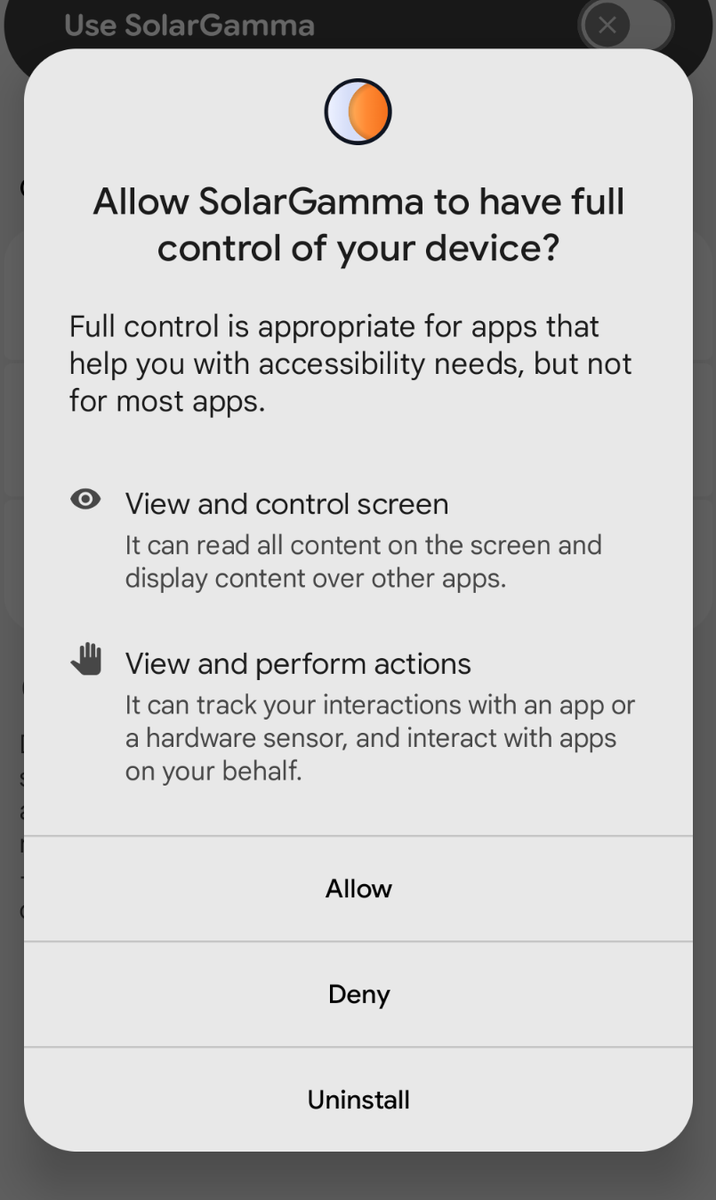
Android shows those same words for every accessibility service, because the screen describes what the category is capable of, not what the app in front of you actually asked for. It is written for the worst case an accessibility service could be, which is the right way for a system warning to behave.
What a particular service asked for is set at install, in a file inside the app. That is the list below.
What SolarGamma actually asks Android for
An app must declare each accessibility capability it wants, and a capability not requested at install cannot be acquired afterwards. This is every capability a service can request, and what this app requests:
| Android can grant a service… | Does SolarGamma ask for it? |
|---|---|
Reading everything on your screen (canRetrieveWindowContent) |
No |
Seeing your key presses (canRequestFilterKeyEvents) |
No |
Tapping, swiping and acting for you (canPerformGestures) |
No |
Taking screenshots (canTakeScreenshot) |
No |
Controlling magnification (canControlMagnification) |
No |
Explore-by-touch (canRequestTouchExplorationMode) |
No |
Being told which app is in front (typeWindowStateChanged) |
Yes |
The one yes. When you move between apps, Android hands the service the
package name of the app you moved to, such as com.android.chrome. The
service reads that, and the window’s class name, which it uses only to tell a
keyboard window apart from an app so it can ignore it. When the service
starts it also asks Android for the list of keyboards enabled on the device,
for the same purpose. Nothing else about the event is read. Those facts drive one feature: your app exclusions list,
which lets the filter lift itself for apps you choose. The name is held in one
variable in memory, acted on immediately, and never written to storage.
Where each of those noes comes from. The six capabilities are locked by Android: not asking for one at install means it cannot be switched on later, and that guarantee is the operating system’s, not ours. The event line works differently, and it is worth being exact rather than letting you assume otherwise. Android does allow a running app to widen the events it listens for. SolarGamma never does; it contains no code that alters its own service configuration. That one is our word, backed by the source, rather than a lock Android holds.
Checking the file yourself
The table above is a plain-English reading of one file that ships inside the
APK, at res/xml/accessibility_service_config.xml. Any APK inspector will
show it to you. Here it is in full:
<?xml version="1.0" encoding="utf-8"?>
<accessibility-service xmlns:android="http://schemas.android.com/apk/res/android"
    android:accessibilityEventTypes="typeWindowStateChanged"
    android:accessibilityFeedbackType="feedbackGeneric"
    android:isAccessibilityTool="false"
    android:description="@string/accessibility_service_description"
    android:notificationTimeout="0"
    android:settingsActivity="dev.solargamma.bluelight.ui.MainActivity"
    android:summary="@string/accessibility_service_summary" />
Every can… line from the table is simply absent, which is how a capability
is declined. In Android, omitting one refuses it. And
isAccessibilityTool="false" is the app telling the operating system plainly
that it is a screen filter, not an aid for people with disabilities: the
honest answer, and the same one given on its Play Store listing.
The second lock: no internet
Even the one fact the service is given has nowhere to go. SolarGamma does not
declare the INTERNET permission, so Android will not open a network
connection for it at all, so there is no route off your device for anything to
take. The privacy policy covers
everything else the app stores.
Questions
If anything here is unclear, or you would rather ask before enabling anything, write to support@eveningside.dev.